Download and extract
Download MOX-x.y.z.zip and extract everything to a regular folder. Do not run the EXE directly from inside the ZIP.
A public-beta assistant for MTG Arena: in-game counter, Draft support, decks and statistics. You can get started without creating an account.
Checking the latest release…
Download MOX for WindowsFor Windows. Extract the ZIP to a folder and launch Mox.exe. If Windows blocks it, the safety steps are below. No account is needed.

Download MOX-x.y.z.zip and extract everything to a regular folder. Do not run the EXE directly from inside the ZIP.
Open Mox.exe, then open MTG Arena. MOX detects Arena and the data the game makes available.
MOX guides you through five steps. You can leave every data-sharing option off and still use its local features.
If you already used MOX, your existing choices remain in place and first-time setup does not reappear.

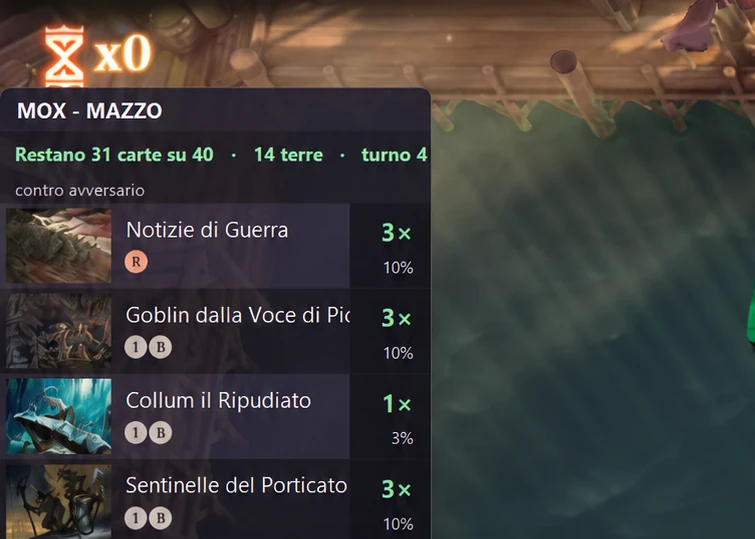
Run it alongside Arena: it counts remaining cards and lands and shows probabilities based on what the match has made observable. It cannot see hidden information and does not make plays for you.

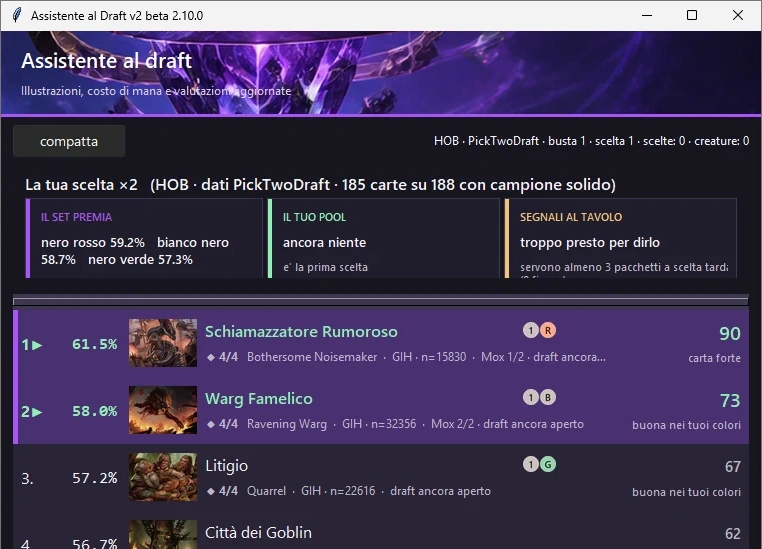
Open it before entering the Draft. It ranks the pack, shows ratings and context and, at the end, proposes a deck base from your pool.

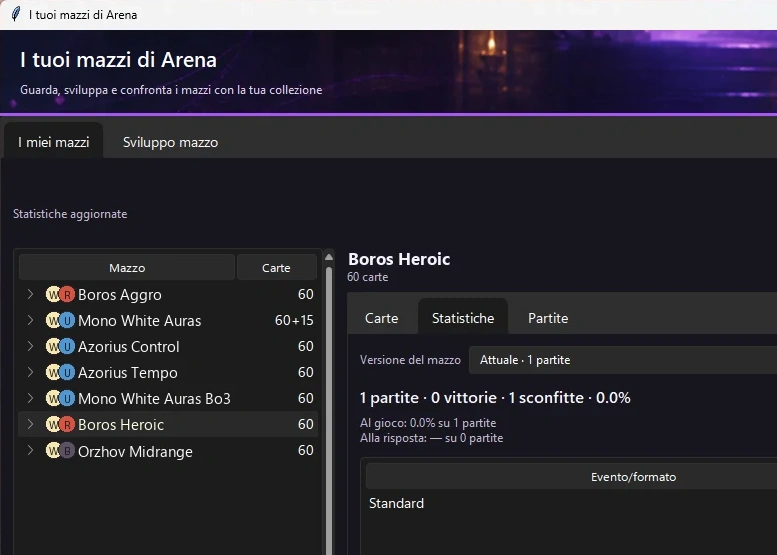
Find your Arena decks, compare them with your collection and review local statistics from saved matches. You can copy a deck or save it to a file to share it.
On the dashboard, the Collection card provides Update and Show file. Open Arena, sign in and wait for the home screen before updating: MOX reads the data available in Player.log and in Arena's card database, then saves collezione.json on your PC.
Manual extraction under Options → Diagnostics uses the same data but shows technical details in a window, which is useful if the dashboard update fails.
MOX can start and use local features without Detailed Logs. To follow Drafts and show wildcards, gold and gems, Arena must write detailed logs and the inventory InventoryInfo. In Arena, open Options → Account, enable 'Detailed Logs (Plugin Support)' and restart Arena when needed.
Owned cards, wildcards, gold and gems reflect the latest inventory that Arena wrote to the log. After purchases or crafting, return to Arena's home screen and update again: values are not read in real time.
If the inventory is unavailable, resources are shown as unknown, not zero. If InventoryInfo is present but omits a resource, Arena indicates a real zero. Select Check again after enabling the logs or receiving a new inventory update.
The collection powers deck-cost calculations and comparisons in Your decks and Deck development and, when available, the Draft Assistant's collection context.
Select a deck to see its list, local statistics and collection comparison. You can use Copy to clipboard, Develop a copy, Save as…, Shareable image or Save all.
Saved versions and archived projects remain available through their controls. A development copy does not change the original deck in Arena.
The window appears immediately. If the card cache is cold, a background process may take a while to complete names and details: the indicator shows X/Y progress and the window remains usable. Later loads are normally faster.
If a deck does not appear, open Arena, wait for decks to load and try again; then update the collection if the owned/missing comparison is out of date.
Use New from list or Develop a copy from an Arena deck. In the project you can rename, duplicate, archive or restore; deletion is available after archiving. Arena list and Copy for Arena prepare the list for the game, while Update collection and Show collection file refresh the local comparison.
Cards and cost separates the main deck, sideboard, commander and companion when present and shows owned and missing copies and wildcard needs by rarity.
Checks flags structure issues and compatibility with supported formats. This guidance is based on available data: always check the list directly in Arena before spending wildcards.
MOX helps you assess your options; it cannot guarantee Draft or match results.
Open Your Arena decks, choose a deck and review matches, wins, losses and the other available metrics. The collection comparison shows what you own; from here you can also copy the deck or save it to a file.

MOX works without an account. Matches/Meta, Draft, Research and 'Decks in your account' are separate choices in Options. Research starts only after confirmation in its notice. Linking an account does not enable deck sync.
You do not need an account to use the client. To see decks, matches, Drafts and linked devices on your personal site, sign in with Google or Discord, generate a code in the Account section and enter it under MOX → Options → Link your account. The one-time code expires after 10 minutes.
To sync decks to your private account area, separately enable 'Decks in your account' under Options → Data and privacy. Deck names are included in private sync and do not enter the public Meta.
If Mox.exe runs, use it. If Windows prevents the EXE from starting, open this once from the package: INSTALLA-MOX.bat; when it finishes, start MOX with MOX.bat. Do not disable Windows Defender or other protections. If the issue persists, contact Support.